Queue Management
The VerifyIQ application list page has been updated to expose additional data as well as support sorting and filtering to enable the client operations team to more effectively leverage VerifyIQ as a standalone system to augment LOS tasks. Please contact your account representative if you would like to enable this functionality.
Application list page
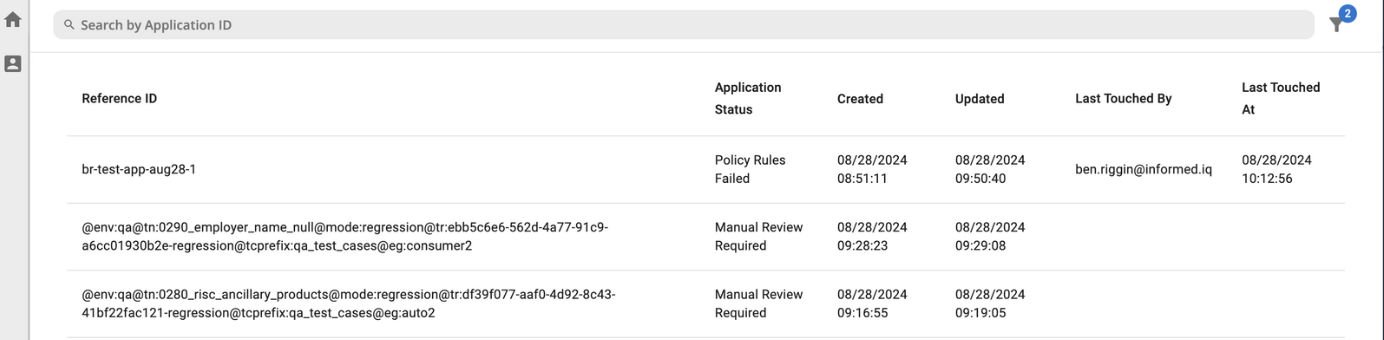
Instead of just showing the application Reference ID, the list page will have the following new data points added:
Application Status
- Follows Application Status definitions
- Values are:
- Passed
- Manual Review Required
- Policy Rules Failed
- Documents Missing
Created
Timestamp when the application was first created/registered with Informed. The time will display in the user's local time.
Updated
Timestamp when the application was most recently updated (e.g., verifications run has completed). The time will display in the user's local time.
Last touched by
Note that the work session management feature must be enabled to view this data column. Please contact your account representative if you would like more information on enabling this feature.
This column will display the user's email address who last took a manual action on the application. The value will be blank if no manual actions have been taken.
If a user has an active work session on an application, the email address will be highlighted visually in blue.
The value will appear for any manual action taken on an application, including:
- Work Session Started/Ended
- User action performed in the application, including:
- Extracted value edited
- Verification question or status override
- Document reclassified
- Document page order change
- Document ignored
- Document uploaded to VerifyIQ
- CollectIQ message manually initiated from VerifyIQ
Last touched at
Note that this feature must be enabled prior to use. Please contact your account representative if you would like more information on enabling this feature.
Timestamp when the application was most recently manually updated by a user.
Updated since touched
Note that the work session management feature must be enabled to view this data column. Please contact your account representative if you would like more information on enabling this feature.
This column will contain a True/False value based on whether the application has had any updates since the last manual touch.
Examples which would cause this to be True and thus able to filter for manual reviews:
- New or trailing document uploaded (via CollectIQ or API) since a past manual review
- User uploads large file to VerifyIQ and leaves the application before it finishes processing. Update comes in after user leaves the app and this value will be set to
True. - Application context data updated via API (i.e., verification added or data changed) since last manual review
Field-based filtering
Users can filter for applications that meet their specific criteria based on available fields to optimize review time.
Filter criteria will be saved locally to persist across login sessions unless the user manually clears their filter criteria.
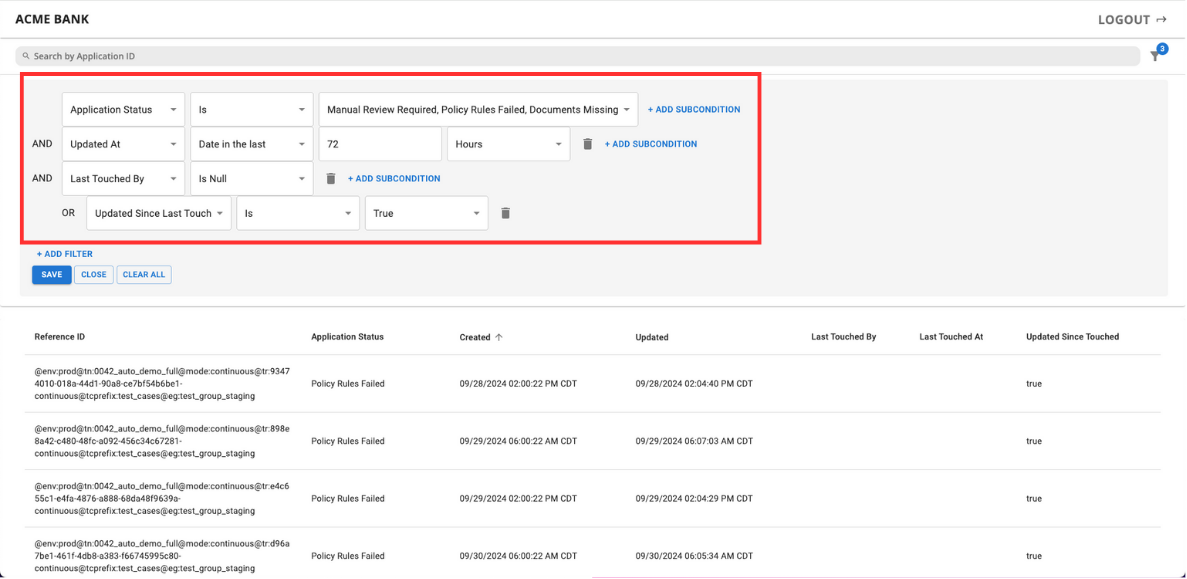
A user can add multiple filters that will apply AND combinatorial logic across them. For any given filter criteria, a user can also add OR sub-conditions to broaden the overall filter logic.
Filter options available are:
- Application Status
- Common examples are
Passed,Manual Review Required,Policy Rules Failed,Documents MissingorNo Documents Uploaded
- Common examples are
- Created/Updated/Last Touched At datetime in the last X hours
- Last Touched By
- User entered email address
- Is
null - Is not
null
- Updated Since Last Touch
- Is
True - Is
False
- Is
- Product Type
- Ability to filter for
LoanorLease
- Ability to filter for
- Product Sub Type
- Ability to filter for
RetailorBusiness
- Ability to filter for
- Contract Type
- Ability to filter for
PaperorElectronic
- Ability to filter for
- Funding Status
- Ability to filter on the designated funding status
- Lenders can leverage Informed's default set of
Active,Reviewed,Funded,DeclinedorInactive - Or, coming soon, lenders can be configured for their own set of funding statuses
- Created Source
- Can filter for applications created via
API,VerifyIQ(i.e., No API) orDealer Verify
- Can filter for applications created via
- Channel
- Lenders can send custom values to differentiate the originations channel for this application
- Examples:
IndirectorDirect
Sample Filter logic could be:
- Application Status is Manual Review, Policy Rules Failed or Documents Missing
ANDUpdated in the last 1 hourANDlast Touched By is nullORupdated Since Last Touch Is True
Selectable columns
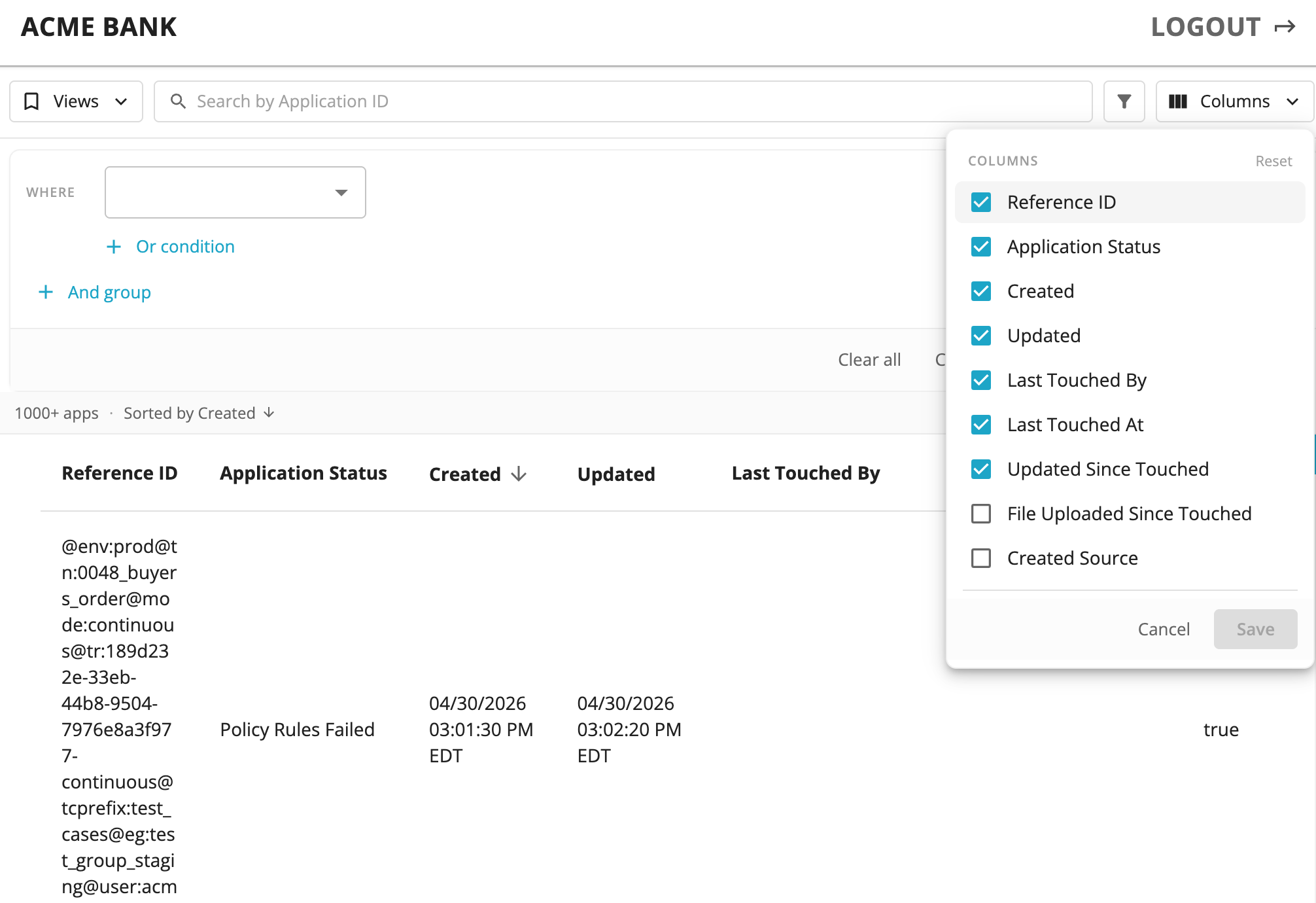
The Application view table columns can be modified by selecting or deselecting the available information under the Columns dropdown on the top right of the window.
Sort options
A user can sort their application list display by Created or Updated times-- either ascending or descending.
Work Session Management
Note that this feature must be enabled prior to use. Please contact your account representative if you would like more information on enabling this feature.
VerifyIQ has been enhanced with the ability to log work sessions to indicate:
- that an application has been reviewed, and
- to avoid multiple agents working the same application simultaneously
Starting a work session
If a user has the role of loan_officer or underwriter, a work session will automatically start when they open an application.
If a user does not have one of these roles, they can press the "Start Working Application" button to begin the work session.
Active work session
A user will know that they are in an active work session for an application because of the notice in the top right corner of the VerifyIQ window.

When a work session starts/ends, it will update the Last Touched fields on the application list page. Users outside of the application being worked on can filter out these applications (with "Last Touched By" is null) to avoid re-working applications that are already being worked.
Stopping a work session
A user's work session will be stopped if:
- User manually leaves an application and is no longer viewing the app
- User manually logs out
- User closes their browser: work session will automatically stop within the next 5 minutes
- User login session auto-expires: work session will automatically stop within the next 5 minutes after auto-logout.
- User presses the "Stop Working Application" button to stop their work session
If a user has an active work session and another user views the same application, they will be unable to start a work session on that application. They will see the email address of the user actively working it already.