Create New Application
Introduction
The VerifyIQ Portal enables lenders to streamline their manual processes to verify and onboard new applicants with no integration to a Loan Origination System (LOS) required. The VerifyIQ Portal can be used throughout the originations journey at underwriting, funding or wherever documents are collected for the purpose of performing verifications. Drag and drop documents into the portal to enable Informed's Vertical AI to classify documents, extract key information and verify data according to your policies in order to increase agent efficiency, improve consistency and decrease manual errors.
Accessing the portal
Agents will access the hosted portal by going to the URL provided during the onboarding process. Agents will login via SAML-based Single Sign On (SSO) using their company authentication mechanism, or username and password. See the SAML Setup Guide for more information.
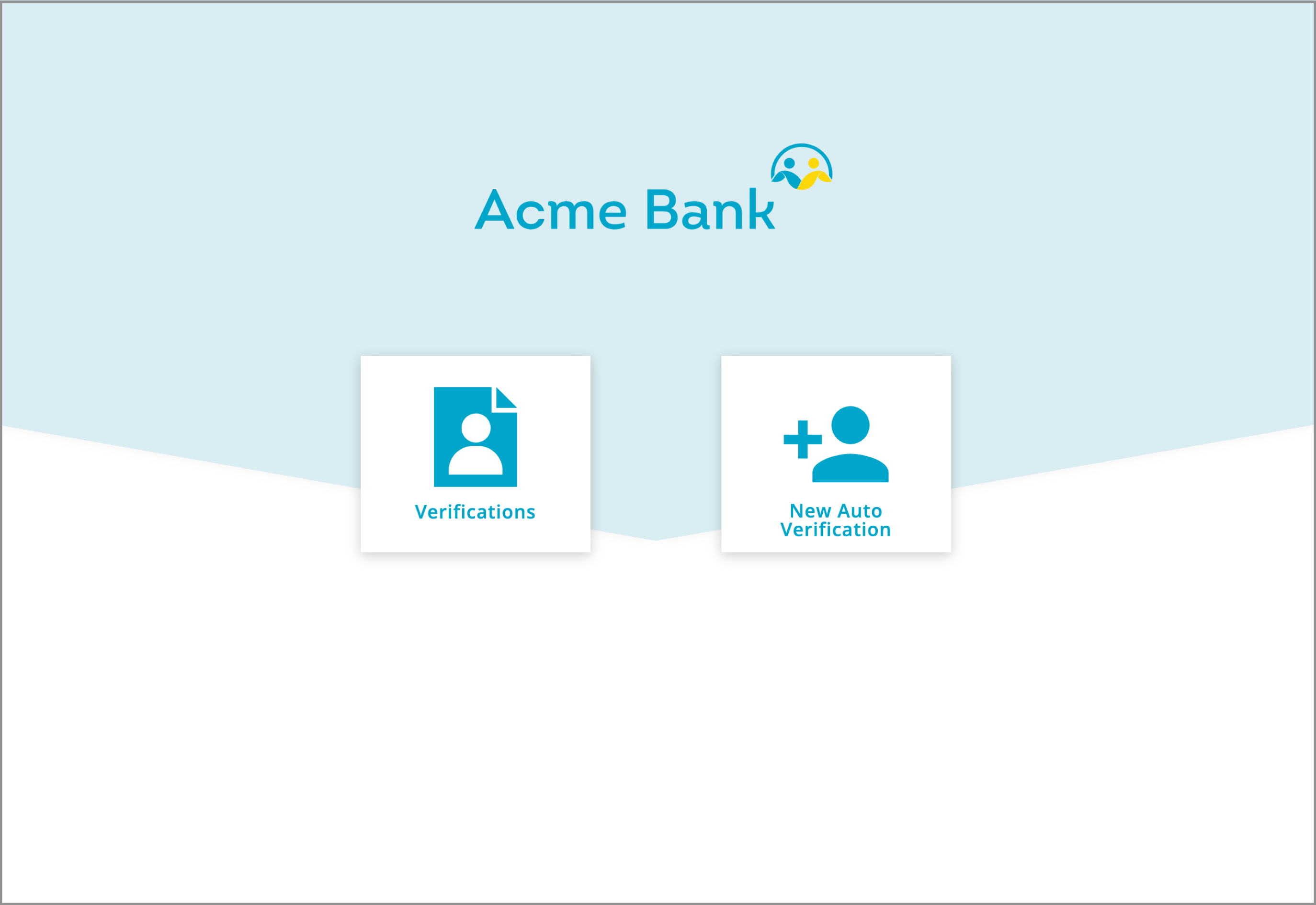
When a new application is created within your LOS that requires document-based verification, agents should log into the VerifyIQ Portal to access the New Verification card from the VerifyIQ home page.
Verifying a New Application
Submitting the application
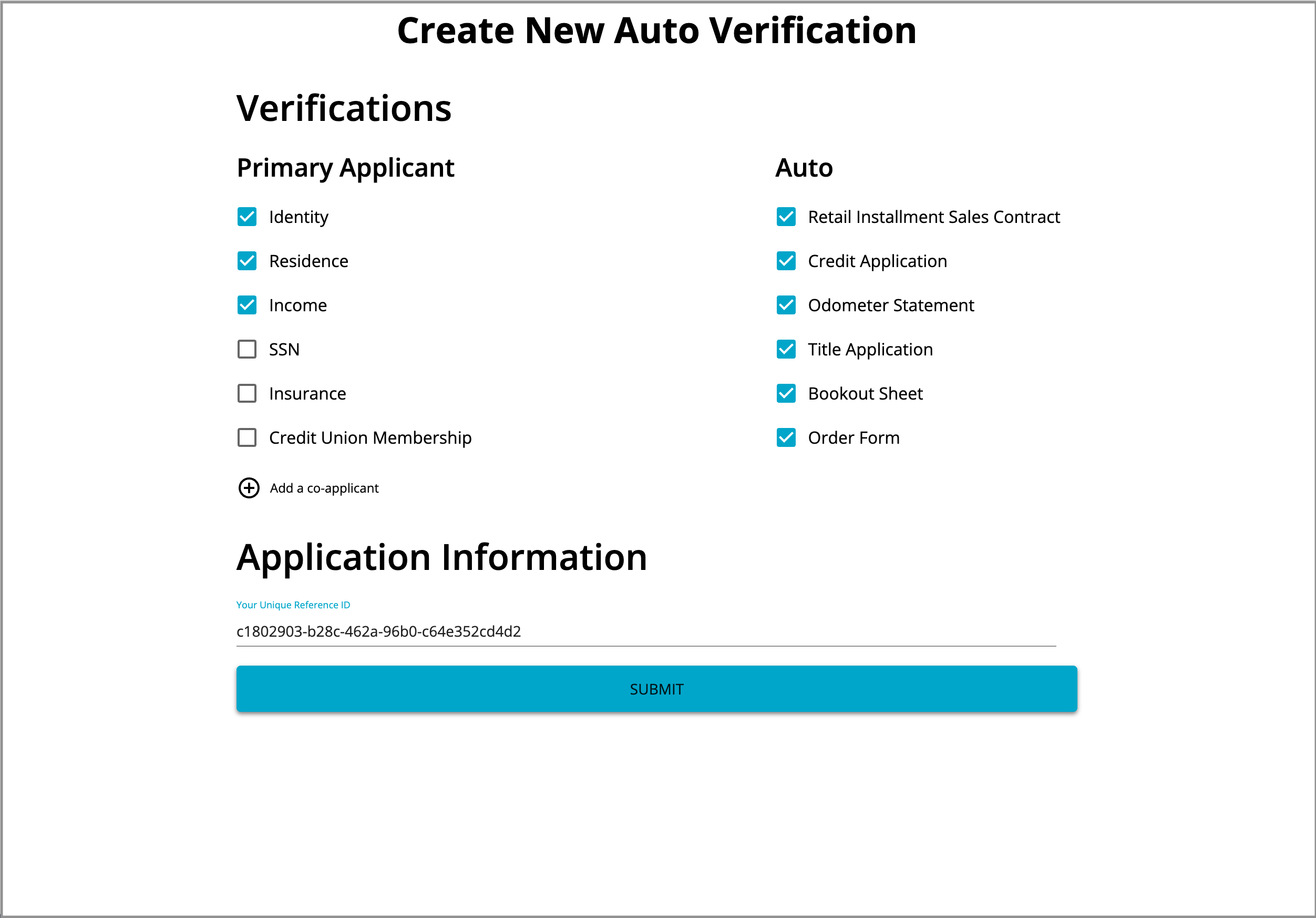
Agents must complete the following high-level steps to initiate application registration:
- Confirm or update required consumer and auto verifications for the new application
- Paste in the application ID for appropriate tracking back to your LOS
- If applicable, paste in any additional applicant data needed for use in verifications (applicant name, stated income, etc.)
Agents can also add co-applicant verifications as applicable. When ready, agents can submit and will be prompted to upload their deal jacket documents.
Editing an application
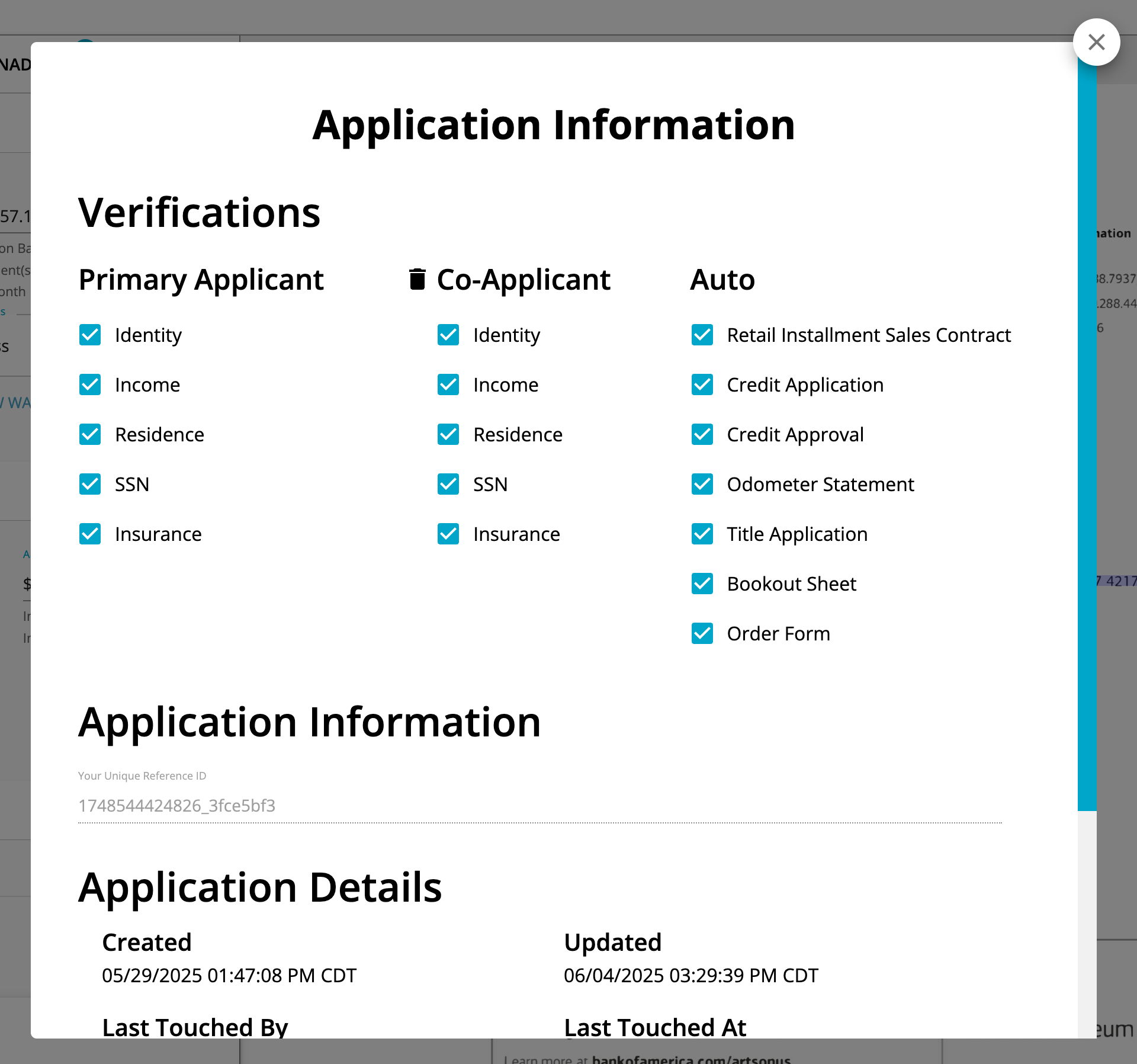
If verifications are missed during initial application creation, agents can add more verifications later from the Application Information menu.
Verification Options
Informed will provide a baseline configuration that supports the verification of consumer and auto-related stipulations which can be adapted to your specific verification policies.
- The verification check box options can be removed or have additional verification types added to meet your requirements. If checked by a user (or pre-checked), the configured set of verification rules will run for that application.
- Common verifications can be auto-selected by default to save agents time and reduce the chance of manual error from having to click on each one for every application.
- Co-applicant verifications can be selected on a per application basis as applicable.
- Auto-stipped verifications are commonly configured for aftermarket products (VSC, GAP, etc.) to dynamically be present on the application based on the presence of a related document or field extraction from the contract.
Uploading Documents
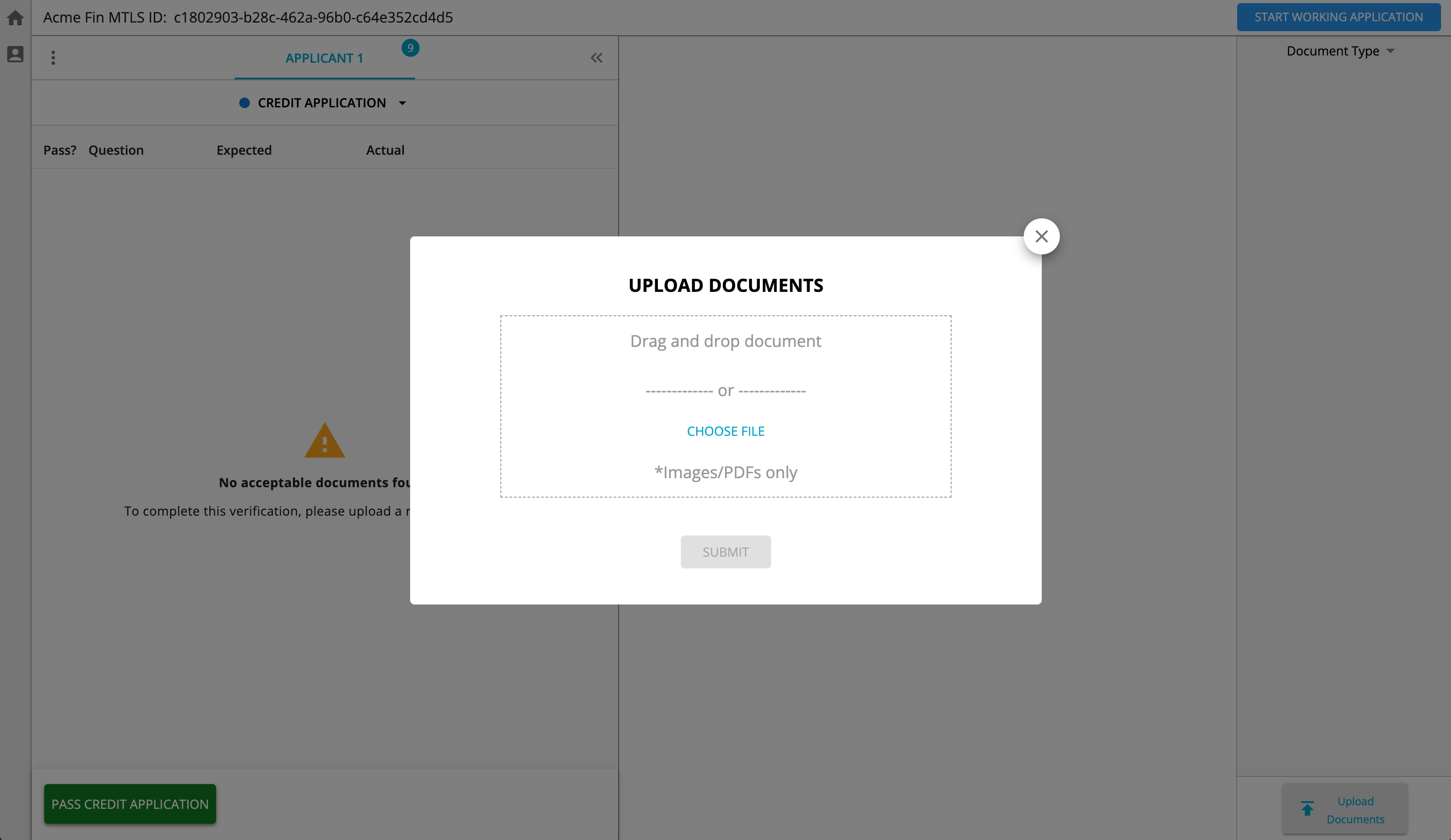
Agents will be automatically redirected to a page where they can drag and drop their deal jacket documents. Documents can be uploaded whether they are a single merged PDF of all deal jacket documents, or individual files for each document. Informed will classify the documents and split as needed, extract key fields from supported documents, and run verification rules for each enabled verification. The VerifyIQ interface will update in real time when completed.
Manual Application Reviews
If an application does not automatically pass all funding rules, funders can manually override system outcomes where appropriate, including overriding verification category status, verification question status, document extractions and document classifications.
See the VerifyIQ User Guide for more information.
Process Multiple Applications in Parallel
If Agents have multiple applications available that need verifications, they can initiate multiple applications to process in parallel in order to minimize time waiting. After documents are submitted an application, they can navigate back to the VerifyIQ home page, enter the workflow and initiate the process for a new application and its associated documents.
Agents can monitor the application status in the Application Queues page and look for either:
- Application Status changes from No Documents Uploaded or Initial Verification in Progress to a terminal state status, such as Passed or Policy Rules Failed
- Updated Since Touched changes from False to True
It is recommended to set your filter criteria with the below filters to make this process easier:
- Updated in the last X hours
- Updated by your email address
See Queue Management for more information.
Download Verification Summary PDF with Stacked Documents
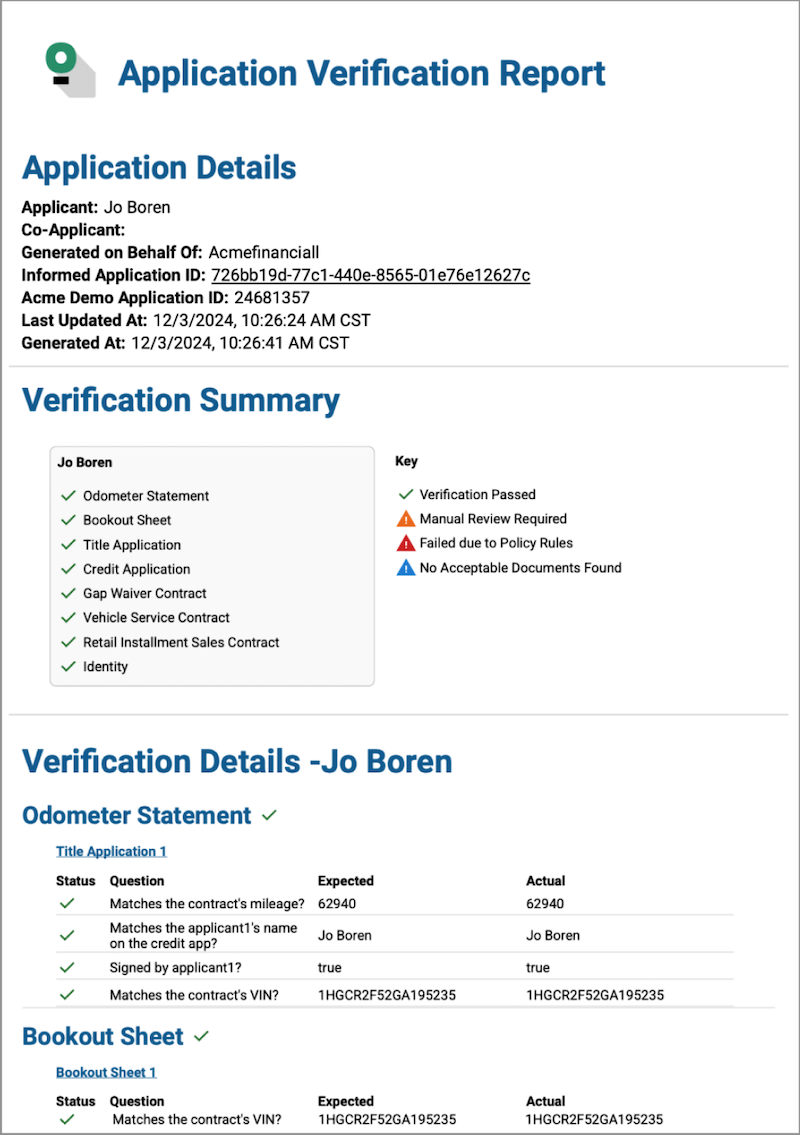
Agents can download a verification summary report to be saved back to their loan origination system or system of record. This report can be used as an audit trail and proof of passed verifications for manually funding a loan. The report contains verification details and document images in a single file, or can be downloaded as separate files.
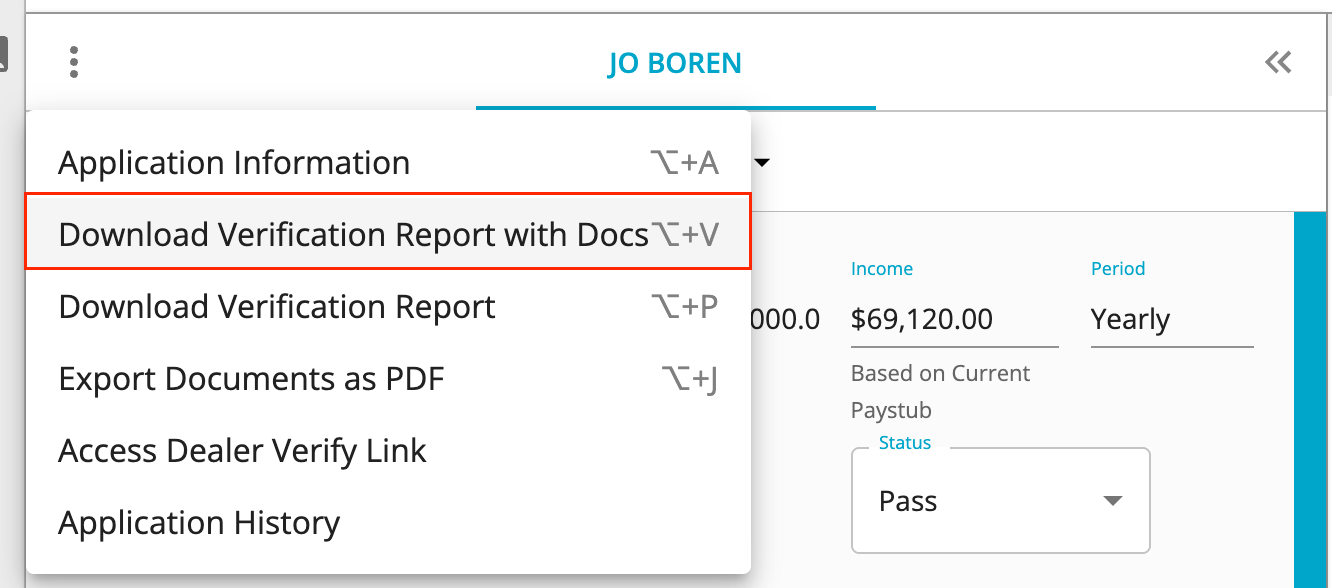
If you would like to retrieve this combined report programmatically, that is now possible. You can find the instructions for that process here.
Verification Details
The verification report will match data shown in VerifyIQ, including:
- overall verification status
- status of each verification question and the document used
- direct links to view the application or documents within Informed's portal
Stacked and Sorted Documents
Informed's VerifyIQ interface displays all documents in a lender-defined order (based on document type) to align with your document stacking policies. Documents will always be sorted by document type. If multiple documents of the same type are uploaded, they will be ordered newest to oldest.
Agents can ignore any irrelevant or unused documents to remove them from the stack.
The verification summary PDF contains all the documents associated with the application, correctly sorted in the expected order, in a format that can be exported and saved back to your loan origination system.