RequestIQ User Guide
Introduction
RequestIQ is a component within the VerifyIQ user interface that allows users to request specific documents by sending a text message directly to the loan applicant. The typical reason for collecting documents is when required loan documents for credit stipulations (e.g., income, residence, identity and insurance) are missing from the loan package. The document collection process can still be initiated even if relevant documents are present, as there may be scenarios where more recent documents are required or additional documentation is necessary.
Access
The functionality provided by RequestIQ equates to a user interface for the Informed CollectIQ API and as such requires that CollectIQ be enabled for your account. Please contact your Account Manager or Customer Service rep if you have any questions about the status of your account and what services are enabled.
Requesting Documents
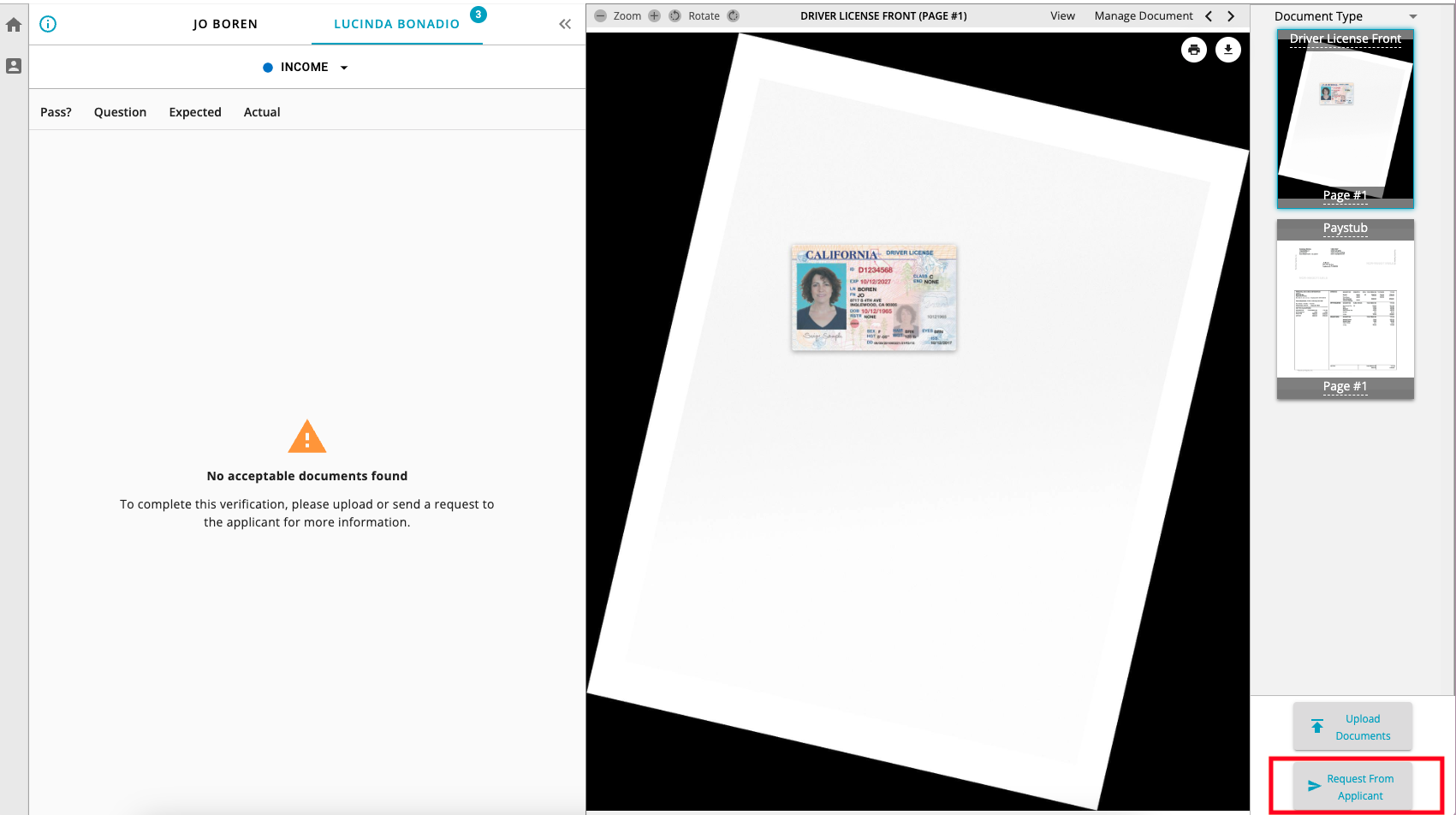
VerifyIQ users can initiate the flow to collect documents from customers by selecting the Request From Applicant button in the bottom right corner of the VerifyIQ application viewer screen.
After selecting Request From Applicant, a new modal window will open that will allow the user to select the specific stipulations and relevant documents that the loan applicant needs to provide as part of the loan application.
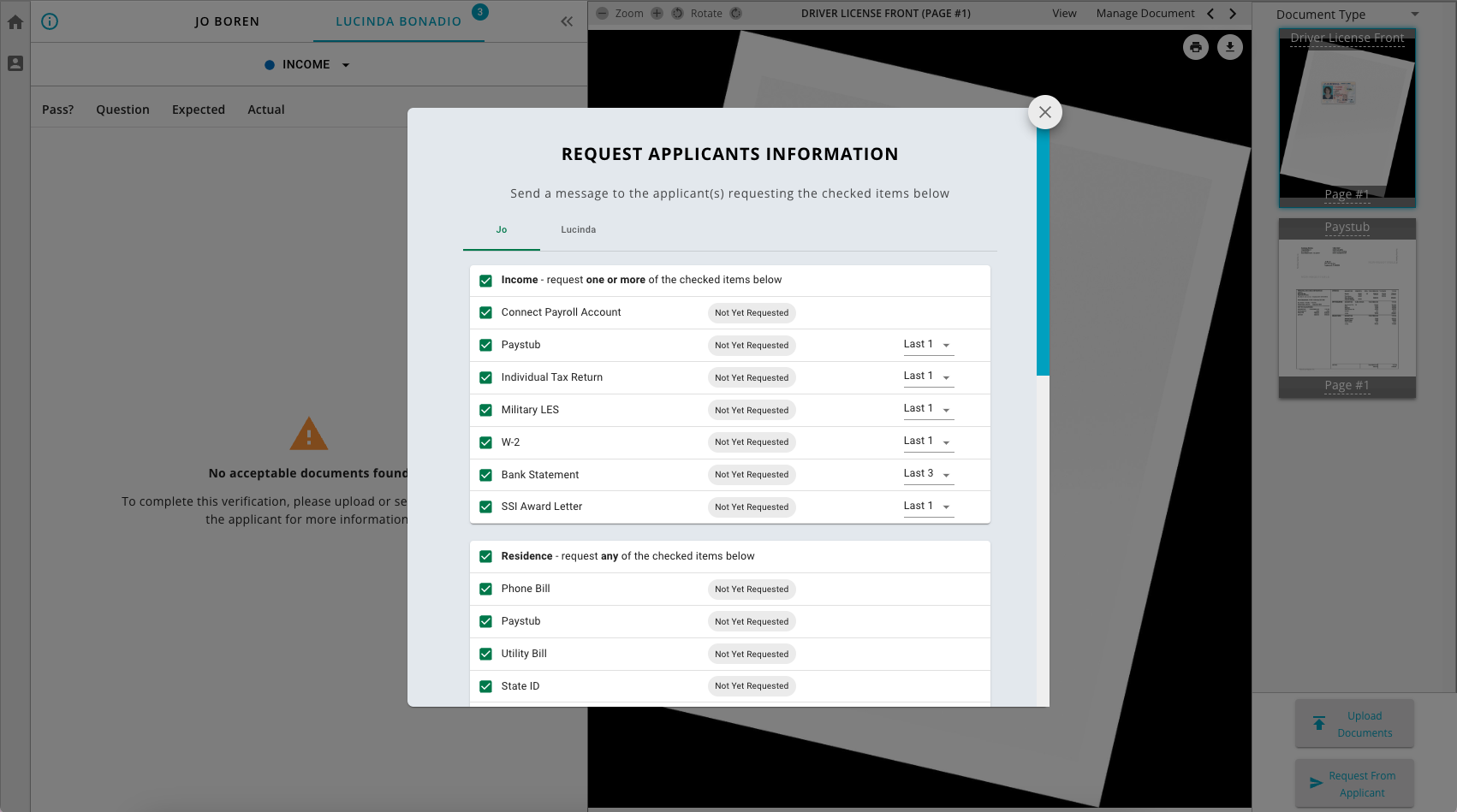
Within this window, users will be able to select the specific stipulations that are relevant for the document collection request as well as the specific documents and quantity that should be provided. Any combination of stipulations and their respective documents can be selected during this process. There is also a place where miscellaneous documents can be entered as part of the request. These documents either do not apply to the specific stipulations or may be a document type from which Informed does not currently classify and extract data.
RequestIQ can be configured with different pre-selection options. The pre-selection options available are as follows:
- all documents for all stipulations will be pre-selected by default
- only documents for open stipulations (stipulations that are not passing) will be pre-selected
- no documents for any stipulations will be pre-selected
This configuration must be completed by Informed, so please contact your Account Manager if you want to adjust the pre-select options.
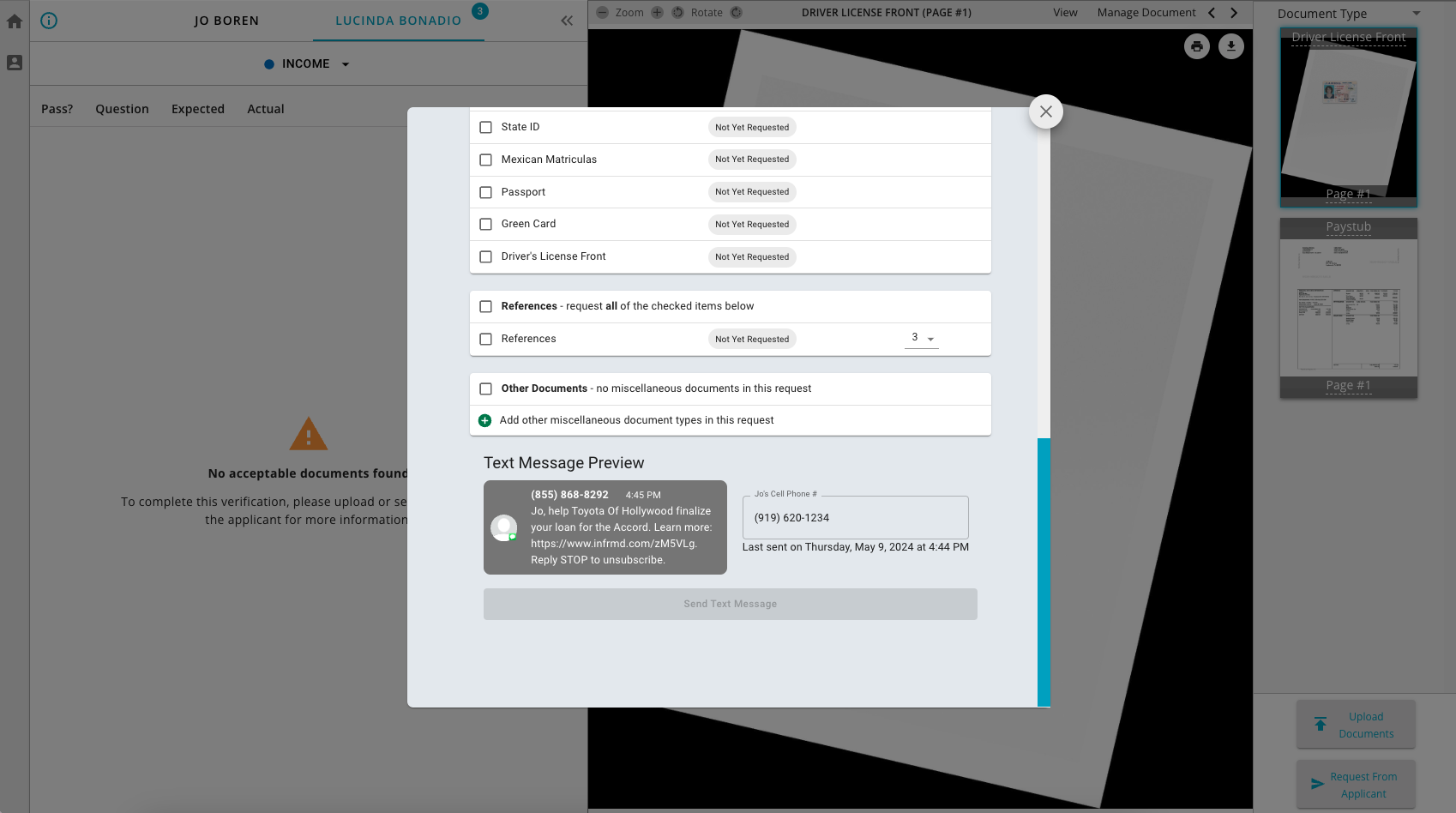
When the user is ready, they will be able to scroll to the bottom of the window to see a preview of the text message that will be sent and either enter or adjust the desired phone number to send to. If a phone number is provided in the initial registration of the application with Informed, that number will display by default in the window for requesting documents from the applicant.
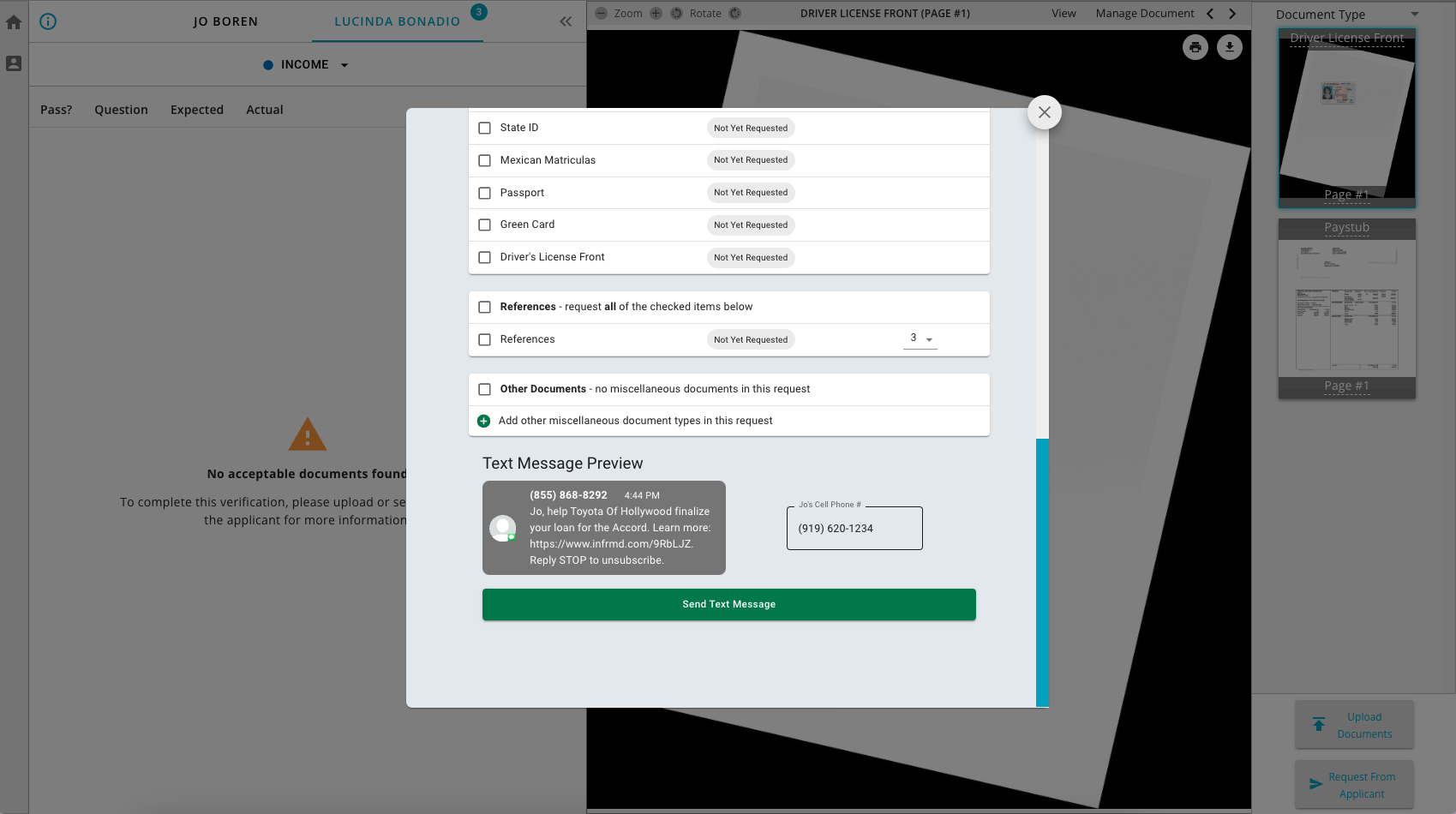
Once the text message is sent, each of the documents that were requested will be updated to indicate their Requested status and the date and time of when the text message was sent will be recorded.